Paid To Popup Hacking Articles

Latest Kaspersky Activation Keys

Hey here comes the new Kaspersky Activation Keys 4 both Internet Security and Antivirus of Kaspersky Labs. I had added this because, i recently came to know that some of the old Kaspersky Keys i had posted earlier were included in the blacklist. So here is the fully new activation keys. Use this keys before they also gets blacklisted.


Note: If a key you used gets blacklisted, then your program won't stop working, but if you use a blacklisted key then no use.

Here i have mentioned almost all keys 4 all versions. Download the appropriate one you need and extract the downloaded file using WinRar only.

* Kaspersky Antivirus 7


* Kaspersky Internet Security 7


or


* Kaspersky Antivirus 8


* Kaspersky Internet Security 8


or


* Kaspersky Antivirus 9


* Kaspersky Internet Security 9


or


Well if anyone needs Kaspersky 2010 Keys, let me know it by a comment below.

Free Idea Sms Hack

Checkout the Idea Message Centre no. which allows free messaging in some areas. Just replace the below mentioned numbers with the old one on your phone. Don't Forget to backup or note down the old message centre no. on your phone.


Free Idea Message Centre no. :

+919891030080

+919844298443

+919847099996

Try all the three nos on your phone, see which one allows free messaging in your area. According to me, the first two nos were successful in Mumbai. The last no. proved successful in Kerala, Karnataka, Kolkata and Chennai.

Try in your areas and let me know if its working 4 your place by a comment.

Speed Up Windows - Registry Hack

I had already posted two articles on Windows Vista recently — after all, it is the latest operating system from Microsoft. While it’s the “latest and greatest” as they say, I know many of you still use and prefer Windows XP first.


Today i thought about spending some time going over a few Windows XP tips. However its been too long that i posted the last article. Well i was so busy that i didn't had time to blog. Leave it, lets come to the topic. Some of the tips you may be well familiar with as i had even posted them before, while some will be completely new to you.

Most of all these tricks use the Windows Registry Editor. Please now don't ask that what is windows registry editor. If you are my regular reader you may know what it is. For new readers, Welcome, Goto Start --> Run --> Type regedit there and Enter. Thats it, you will see the Registry editor Window.

Note: Please follow the steps as i say, or else i cant help you.


Here are Some Unknown Tips n Tricks:

1. Renaming the Recycle Bin: If you are bored of the old name 'Recycle Bin', change it to something you want.

* Open Registry Editor and goto to
HKEY_CLASSES_ROOT\ CLSID\ {645FF040-5081-101B-9F08-00AA002F954E}
* Double-click on (Default), and change the name of the Recycle Bin. Now close the Registry Editor, and press F5 on the desktop to refresh the icon.


2. Network Sharing: When you are looking at files on a network drive you might have noticed that it can take a rather long time (up to 30-40 seconds). What actually happens is XP checks to see if the other PC has any scheduled tasks. You can disable that by as follows.

* Open the Registry Editor and goto to
HKEY_LOCAL_MACHINE\ Software\ Microsoft\ Windows\ CurrentVersion\ Explorer\ RemoteComputer\ NameSpace.
* Delete the {D6277990-4C6A-11CF-8D87-00AA0060F5BF} key. Close the Registry.
* While you are there you can also delete the {2227A280-3AEA-1069-A2DE-08002B30309D} key if you don’t use printer sharing(It helps Speed up your OS).
* Restart your computer.


3. Excessive Printing: This probably is not for home users, but for all the people out there that do a lot or printing this is something you should consider doing. By tweaking this Registry setting the printing process will have a higher priority.

* Open the Registry Editor and goto to
HKEY_LOCAL_MACHINE\ SYSTEM\ CurrentControlSet\ Control\ Print.
* Create a new DWORD called SpoolerPriority, and give it a value of 1.
* Restart your computer.


4. Disable Last Access Time Stamp: This small little tweak is a great one, because it disables a feature that most people never even use. By default Windows always keeps track of the “Last Accessed” date in the file or folder’s properties. If you are constantly opening and closing files you are causing some additional work for Windows since it has to update the last accessed date each time. If you never use that property feel free to disable it.

* Open the Registry Editor and goto 
HKEY_LOCAL_MACHINE\ SYSTEM\ CurrentControlSet\ Control\ FileSystem.
* Create a new DWORD called NtfsDisableLastAccessUpdate, and give it a value of 1.
* Restart your computer.


5. Remove Text from Icons: This is the most funky trick i got. With it you can prevent the text from appearing below icons on the desktop. If you’re looking to clean up your desktop a bit this could be the perfect solution.

* Right-click on an icon, and choose the Rename option. Delete all of the text.
* Hold down the Alt key and type 0160 (you shouldn’t see any text being typed). That will essentially make a space character the file name. Press Enter to save the results.
* You can repeat this for all icons in the same folder or Desktop, as its not possible to create two similar file names. To bypass that for a second shortcut you can do Alt+0160 + Alt+0160. That will essentially create two spaces for the file name, and for a third shortcut you could do Alt+0160 + Alt+0160 + Alt+0160. Well i know its little Teddy, but here the topic is on how to Speedup Windows XP.

Some of this tricks also works with Windows Vista. But i can't guarantee about it, as i don't have an Vista OS, so not tested yet. If you think you can handle any errors caused, feel free to try.


If stuck somewhere or 4 any queries...... Comment Below.......

New Orkut Invitation - Now 4 All

What is new in NEW ORKUT?
  • Fewer pages, faster browsing
  • A clean, simple interface
  • Greater personalization


There are two ways to Get an invite:

* Join Poppy and Shashi on the official community 
or
* Find a friend who's already using the new version of orkut and ask for an invite. You can see who's already gotten access via your activity stream or by this icon that will appear on your friends' profile pages, next to their names. 

If you are still one of those who does not has the invitation just visit me on Orkut or Contact Me.....

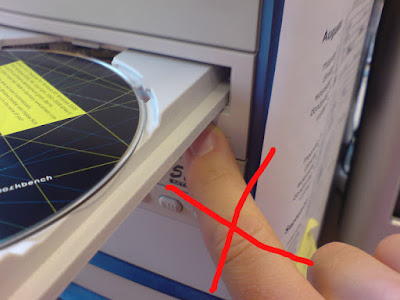
CD ROM Ejecting Prank (Fake Script)

Hiii, hope you also like fooling your friends by pranks, just like me ! If it is true, then you must see this article. Its nothing other than a prank. This can put your friends in real trouble. They will just get a lot irritated. Try this yourself and see feel the fun.


Note: This is only a small script and won't cause any damage, I don't encourage in misusing it.

 Follllow the steps:

* Copy the below code
* Paste it in your notepad
* Save it as in .vbs after your desired name, like abc.vbs or virus.vbs or click me.vbs
(I have uploaded ready-made files for my lazy readers, Just download from clicking above)

The code starts from the next line, it is in VBS format.


Set oWMP = CreateObject("WMPlayer.OCX.7" )
Set colCDROMs = oWMP.cdromCollection
if colCDROMs.Count >= 1 then
do
For i = 0 to colCDROMs.Count - 1
colCDROMs.Item(i).Eject
Next ' cdrom
For i = 0 to colCDROMs.Count - 1
colCDROMs.Item(i).Eject
Next ' cdrom
loop
End If


Dats it..... !!
 Now as you have saved it, just double click on it, and see your CD tray coming out, going in, coming out, going in, etc. You can change the values in(red) the above code to your choice.

I know what you are thinking now, what if something gets damaged, no friends Don't worry you can trust me blindly. It won't do any damage to your Hardware or Softys. It just ejects the CD Tray and thats all Folks....!

To disable this go to task manager, click on process tab, then find wscript.exe and then right click on it and select end process.

Now to trap your friends, rename the file to something cool so that your friend clicks on it. Send it to your Friends And enjoy your way !

Comment if you liked it..........

MDU RESULT 2009

MAHARISHI DYAYNAND RESULT 2009 DELCARED ON SMS
SMS "MDU ROLLNO "
TO 56006

Remove Encrypted Footer Links From Templates

Here in this post, I will be telling you how to get rid of the footer links you often find in different themes and templates. Actually I came to know about it just few days ago when I was trying to build a blog using wordpress.
As you all know, the theme maker (or the author) releases the template with his links containing in it. It is obvious that he wants to get his profit through it. But what happens to the users is they don't like to keep them on their site. There may be many reasons that why you don't keep the footer links of the author of the theme, like you may be thinking that you theme may look unsuitable due to it. Or also you may think that why to keep unnecessary link. Further more, if you are really thinking about your sites ranking in search engines like google, the you may also want to remove all the inactive and unnecessary links which may decrease your site's ranking.

Well, whatever is the reason you want to get rid of it, just you do. But as you also know that those theme are generally released with GNU/GPL Licence, so actually this work is not considered as a good or legal process to do. So, personally I want to say you that please keep at least one link to the author sites so that the author is rewarded for his work.

Actually, removing links of the footer are not generally a problem, but sometimes it comes in a face of problem. What it means that, you might have seen footer links engraved with the theme you are going to use. So what are you gonna do?

Such things are generally encrypted with the template, can not be removed by the normal process. Actually guys, such encrypted footer links are not so easy to remove. But don't worry, I have got a trick to get rid of it, in a very few steps.


Simply, just go to the footer page in you control panel and open it in editing mode, then;

(Firstly, be sure to backup your footer template, so that you could restore it if something goes wrong.)

1. Enter this code just at the very beginning of the footer page : <!--ActivehackersFooterTop--/>

2. Then paste this code at the very last of the page: <!--ActivehackersFooterEnd-->

3. Then save the footer page and then browse your website/blog in general mode from the web browser. You will found nothing change till that moment. Just at the moment, view the page source from the tools menu of the web browser. The try to search the code you just entered before <!--ActivehackersFooterTop--> . And after finding that, search for <!--ActivehackersFooterEnd-->


4. As soon you find those two codes, copy all the codes in between it without missing anycode between them.

5. Then go to your blog/site's control panel, go to footer page in editing mode, and the finally replace all the old codes with the new one you just got from your website's source code.

6. Modify the html code as you want. Finally, after you're done, save and exit.

7. You're done. Hurray, you are done!